Browse, install and update extensions directly in SketchUp with Sketchucation Tools
Download Now
Shadow Slice Pro v2.0.2



- Overview
- Quick Start
- Documentation
- Release Notes
Shadow Slice Pro 2.0 - Interior Shadow & Section Tool for SketchUp
Cut away walls and roofs while keeping their natural shadows. The perfect tool for interior sunlight simulation
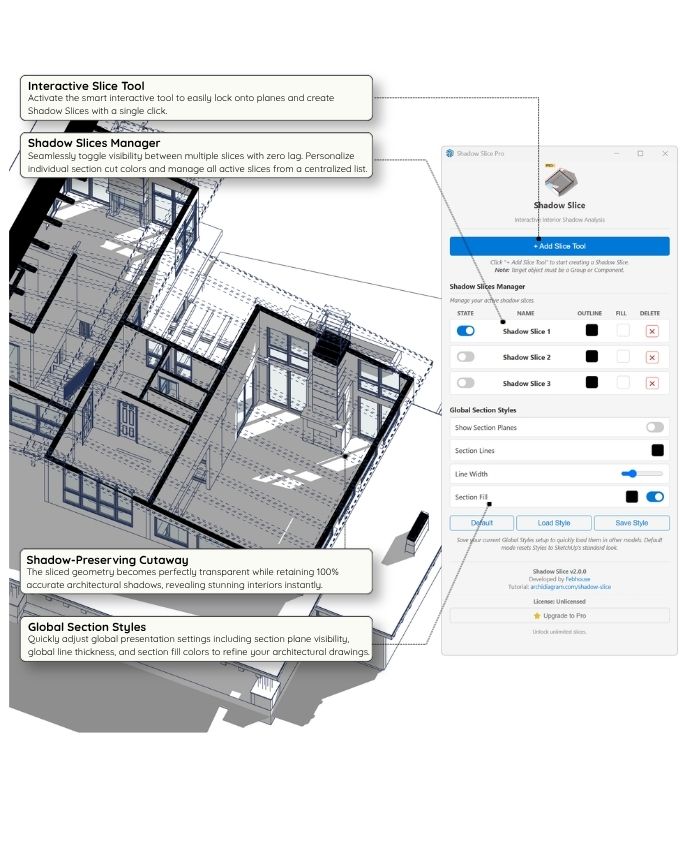
Are you struggling to show natural sunlight and shadows inside interior spaces because the roof or walls block the sun? Shadow Slice Pro is the ultimate visualization tool for SketchUp that solves this exact problem. By creating intelligent "Ghost Slices", this extension allows you to cut away physical geometry to position your interior camera freely, while preserving the exact shadows cast by the removed roofs and walls.
Key Features
- Invisible Ghost Slices (The Magic): Automatically generates a transparent 3D replica of your section cut. It casts realistic sunlight shadows into your interior scene without obstructing your camera view.
- Smart Dashboard UI: Manage all your slices in one sleek, interactive control panel. Toggle visibility, delete, or quickly identify slices directly from the dialog.
- Custom Edge & Fill Colors: Want your section cuts to pop? Easily customize the edge lines and solid fill colors of any sliced component with a built-in color picker.
- Global Style Sync: Reset or save your preferred SketchUp Section Styles (Fill colors, Edge width, Display modes) as a preset JSON file to reuse across different projects.
How It Works
- Select the Shadow Slice Pro tool from your toolbar.
- Hover over any Group or Component (Hold
Shiftto lock the slice normal). - Click to slice! The extension will automatically generate the section plane and the invisible shadow-casting geometry.
- Open the Control Panel to tweak colors or toggle visibility on the fly.
Try It Risk-Free!
We want you to experience the full workflow without any barriers. Shadow Slice Pro comes with a 14-Day Free Trial (No Credit Card Required).
Ready to Upgrade? (Important Purchase Instructions)
Note: The SketchUcation system requires you to have a registered account to purchase and issue your license key securely.
Step 1: Please Log in or Register a free account at the top of this page.
Step 2: Once logged in, click the link below to access the checkout page. You can choose either the Perpetual (Lifetime) or 1-Year license from there:
Purchase License Here: https://sketchucation.com/purchase-smart.php?plugin=FebShadowSlicePro
Step 3: Check your inbox. Download the license key file sent to your email (Note: SketchUcation states that license emails can sometimes take up to 8 hours to arrive).
Step 4 (Activation): Open the extension in SketchUp, click "Activate License", and browse to select the license file you just downloaded. Please ensure your computer is online during this step so the system can validate your key.
For more resources and updates, visit our hub at archidiagram.com
Quick Start Guide: Shadow Slice Pro
Watch our quick overview video to see how to generate your first architectural slice in seconds:
3 Simple Steps to Begin:
Install: You can install the extension directly within SketchUp using the
Sketchucation ExtensionStoreplugin. Alternatively, download the.rbzfile from this page and install it manually viaWindow > Extension Manager.Enjoy Free Trial: Your 14-Day Free Trial starts automatically as soon as you use any tool (no credit card or activation required). To check your remaining trial days or purchase a license, go to
Extensions > Shadow Slice Pro > License...Slice: Click the Shadow Slice icon on your toolbar to open the Shadow Slice. Then, click + Add Slice Tool and click on any face of your object to instantly generate a perfect section cut with shadows preserved. For more detailed settings (like individual color controls, global section styles), please switch to the Documentation tab.
Shadow Slice Pro - Full Documentation
Welcome to the official documentation for Shadow Slice Pro. This guide will walk you through all the advanced features and settings available in the Properties Manager.
1. Core Concept: How it works
Unlike standard SketchUp section planes that physically cut away the exterior geometry (which ruins the interior shadows), Shadow Slice uses a smart duplication method. It automatically creates a "ghost" copy of your object, applies the section cut to the ghost, and applies custom colored materials to the cut faces. Meanwhile, your original geometry remains intact to cast perfect shadows into the room.
2. The Properties Manager
Click the Shadow Slice icon on your toolbar to open the Properties Manager. This is your main control hub.
2.1 Adding a Slice
- Click the large + Add Slice Tool button.
- Hover your mouse over any Group or Component in your viewport.
- Click on any face to instantly generate a slice parallel to that face.
2.2 Shadow Slices Manager
This section lists all your active slices. For each slice, you can: * Toggle State: Use the switch to temporarily hide or show the section cut. * Outline Color: Click the color box to change the line color of the section cut. * Fill Color: Click the color box to change the solid fill color of the section cut. * Delete (X button): Safely remove the slice and its ghost geometry from your model. Note: If you accidentally delete the original component, the manager will display a ⚠️ warning letting you know the slice is missing its parent. You can safely delete it from the UI.
2.3 Global Section Styles
This section controls SketchUp's native section rendering properties globally across your model: * Show Section Planes: Toggle the visibility of the grey section plane borders. * Section Lines: Change the default color and thickness (Line Width) of SketchUp's native section cuts. * Section Fill: Change the default color and toggle the solid fill for native section cuts.
2.4 Save & Load Styles
At the bottom of the UI, you will find three buttons: * Default: Resets Global Section Styles back to SketchUp's standard look. * Save Style: Saves your current Global Section Style configuration to a file on your computer. * Load Style: Imports a previously saved style configuration, instantly applying your favorite look to a new project.
3. Licensing & Trial
Shadow Slice Pro comes with a 14-Day Free Trial, fully featured.
* The trial begins automatically on your first use.
* To check your remaining trial days or activate a permanent license, navigate to Extensions > Shadow Slice Pro > License...
Version 2.0.2 (Updated: 2026/07/15)
Improvements: Enhanced overall user experience and optimized internal operations for smoother workflow.
Version 2.0.0 (Updated: 2026/06/18)
1. 1-Click Simplicity No more tedious manual setups like in V1.0! With just a single click, you instantly get a perfect architectural section cut complete with interior shadows.
2. Multi-Slice Support You can now create up to 2 simultaneous shadow slices in the Standard version, or unlock unlimited slices by upgrading to the Pro version for ultimate creative freedom.
3. Smart Slice Manager A brand-new HTML control panel lets you effortlessly toggle visibility, delete, or clean up leftover slices in a flash.
4. Streamlined Diagram Styling Easily customize the outline color, fill color, and line thickness independently for each slice. You can also Save your favorite color setups and Load them instantly into future projects, drastically simplifying your diagram presentation workflow.
Version 1.0.0 (2026/01/28) Initial Release
Author:
All my plugins
Downloads: 474
Size: 0.17 MB
Version: 2.0.2
Categories: Sections, Views, Shadows
Compatibility: v2020, v2021/22, v2023, v2024, v2025, v2026
Updated: 2026-07-15
Log in to Get It!