Browse, install and update extensions directly in SketchUp with Sketchucation Tools
Download Now
Silpu — AI Render v1.0.1

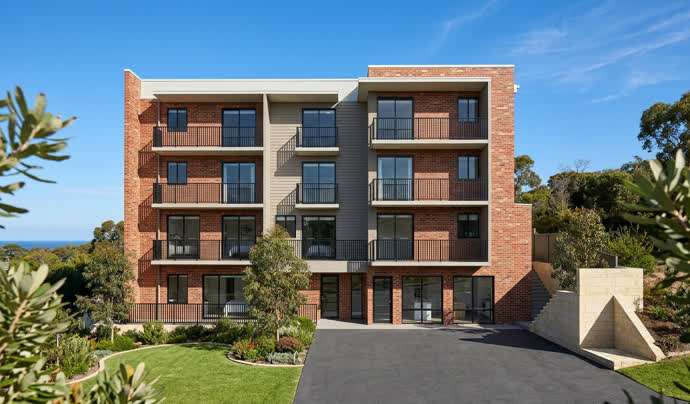
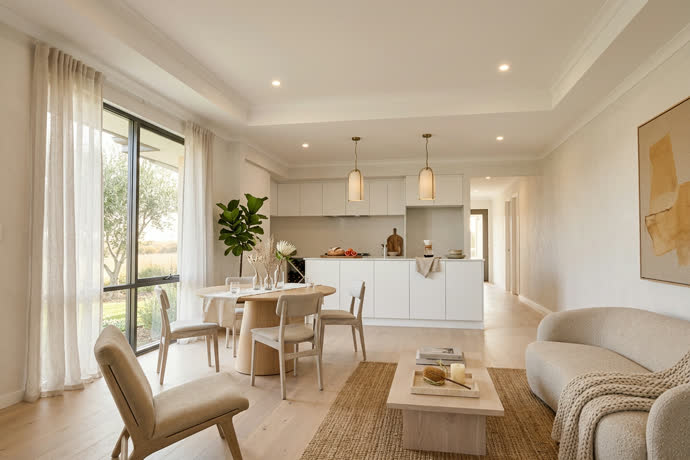
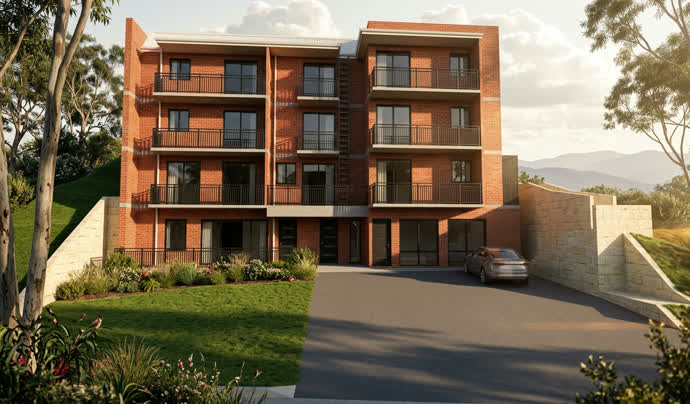
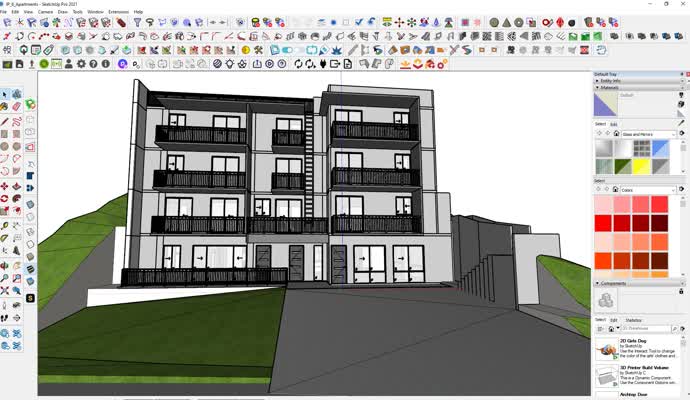
- Overview
- Quick Start
- Documentation
- Release Notes
Silpu reads your active SketchUp viewport and sends it to the Silpu AI rendering studio. You get a finished, presentation-ready image back in seconds, straight from the model you're already looking at.
How it works
- Set up the view you want in SketchUp.
- Go to Extensions > Render with Silpu.
- The Silpu studio opens with your view loaded — pick a style and render.
That's it. Massing models, clay models, or fully built scenes all work — Silpu fills in materials if nothing is provided with the presets as choices, lighting and mood while keeping your geometry.
What you get
- Exterior & interior photoreal renders
- Magazine-grade output — golden-hour, twilight, true whites, corrected verticals
- Day-to-Dusk & Multilight relighting on a finished render
- Magic Edit — change materials, add greenery, fix details with a tap
- No texturing required as there are presets — go from working model to client-ready image
Requirements
- A free Silpu account (sign in inside the studio).
- An internet connection — rendering runs in the Silpu cloud, so it doesn't tax your machine.
See it in action
Built by an architect, for architects and designers who want to show, not just model.
Silpu — AI Render · Documentation
Silpu — AI Render turns your current SketchUp view into a photoreal, presentation-ready image in seconds. This guide covers installation, everyday use, the main features, and troubleshooting.
Installation
From the SketchUcation PluginStore (recommended) 1. In SketchUp, open the SketchUcation tools and install Silpu — AI Render from the PluginStore. 2. Restart SketchUp if prompted.
Manual install
1. Download silpu_render.rbz.
2. SketchUp → Extensions → Extension Manager → Install Extension.
3. Select silpu_render.rbz and confirm.
4. Restart SketchUp if prompted.
Requirements
- SketchUp 2017 or later (Windows & Mac)
- An internet connection
- A free Silpu account (sign in with Google inside the studio)
Getting started
- Frame your view. Orbit and zoom to the shot you want — the render uses your active viewport.
- Click Render. Use the Render with Silpu button on the Silpu toolbar, or go to Extensions → Render with Silpu.
- The studio opens in your browser with your view already loaded.
- Sign in (free, Google) the first time.
- Pick a style or write a brief, then Generate. Your render returns in seconds.
Tip: you don't need to apply materials in SketchUp first. Render straight from a clay or hidden-line model and either pick a preset or describe the finishes.
Writing a brief (optional)
A brief is a short, plain-English description of the finishes, time of day and mood, for example:
"Two-storey home, charcoal standing-seam roof, white render walls, timber soffits, golden-hour light, lush native garden."
Leave it blank and choose a preset for a one-click result, or add a brief for precise control over materials and lighting.
Main features
- Photoreal exterior & interior renders — from massing, clay, or fully built models.
- Presets & styles — one-click looks; no render engine to learn.
- Consistent multi-angle sets — render the same building from several angles with matching materials, ideal for client decks (and as keyframes for animation).
- Day-to-Dusk & Multilight relighting — turn a finished daytime render into golden hour, dusk or night.
- Magic Edit — change materials, add greenery, or fix details on a finished render.
- Materials schedule — specify exact finishes and get a clean schedule alongside the render.
- Location-aware — streetscapes, planting and light true to your project's place.
- Live link — orbit in SketchUp and the view follows into the studio.
Credits & pricing
The extension is free to install. Rendering uses credits you buy at silpu.com. Credits never expire and there's no subscription — and new users get free renders to start.
Privacy & your data
When you render, Silpu captures your current viewport and sends it to the Silpu cloud, where it's processed by an AI rendering service to produce your image. You keep ownership of your models and renders; submitted content is used only to produce your result. See https://silpu.com/privacy.
Troubleshooting
- No "Render with Silpu" button — open Extensions → Extension Manager, confirm Silpu — AI Render is installed and enabled, then restart SketchUp. The command also appears under the Extensions menu.
- Nothing happens when I click Render — check your internet connection; the studio opens in your default browser. Allow pop-ups for silpu.com.
- Can't sign in — allow pop-ups for silpu.com and make sure you're signed into your Google account.
- Render differs from my model — add a short brief naming the key materials, or pick a preset; Silpu preserves your geometry but invents any finishes you don't specify.
- Image won't download — try another browser or check your browser's download settings.
Support
- Email: support@silpu.com
- Website: https://silpu.com
- EULA: https://silpu.com/eula
- Privacy Policy: https://silpu.com/privacy
SketchUp is a trademark of Trimble Inc. Silpu — AI Render is an independent product developed by Silpu Pty Ltd and is not affiliated with, endorsed by, or sponsored by Trimble Inc.
Release Notes
v1.0.1 — capture fix (July 2026)
A small but important fix so re-capturing your view always works.
- Fixed: the in-panel "Capture current view" / "Add this view to the set" buttons now work — pull your current SketchUp angle on demand without reopening the panel
- Improved the plugin ↔ studio handshake for more reliable captures
v1.0.0 — first public release (June 2026)
The first release of Silpu — AI Render. One click turns your current SketchUp view into a magazine-grade photoreal render.
- One-click render from your active SketchUp viewport — no export, no scene setup
- No texturing required — render from clay or massing models using presets, or describe finishes in a short brief
- Photoreal exterior & interior renders
- Consistent multi-angle sets with matching materials
- Day-to-Dusk & Multilight relighting on finished renders
- Magic Edit — change materials, add greenery, fix details
- Materials schedule generated alongside the render
- Location-aware lighting, planting and streetscape
- Live link — orbit in SketchUp and the view follows into the studio
- Works with SketchUp 2017 and later (Windows & Mac)
Support: support@silpu.com · https://silpu.com
Author:
All my plugins
Downloads: 700
Size: 0.01 MB
Version: 1.0.1
Categories: Views
Compatibility: v2018, v2019, v2020, v2021/22, v2023, v2024, v2025, v2026
Updated: 2026-07-08
Log in to Get It!