Browse, install and update extensions directly in SketchUp with Sketchucation Tools
Download Now
Dynamic Symbols Pro v2.3.1

- Overview
- Quick Start
- Documentation
- Release Notes
Dynamic Symbols Pro: Bring Your Architectural Diagrams to Life
Dynamic Symbols Pro is a lightweight, easy-to-use SketchUp plugin designed for architects, designers, and educators who want to create stunning, dynamic diagrams directly inside SketchUp.
Skip the hassle of exporting to Illustrator or After Effects! With Dynamic Symbols Pro, you can instantly populate your 3D models with customizable 3D symbols, change their colors on the fly, and even automatically generate animated sequences to tell the story of your design.
Why choose Dynamic Symbols Pro?
- Speed & Efficiency: Swap symbol shapes with a single click while perfectly maintaining their original position, size, and rotation.
- Total Customization: Recoloring symbols is now effortless—no more digging through SketchUp's complex material editor.
- Instant Animation: Automatically create smooth scene transitions for your symbols, perfect for exporting flowcharts, environmental analyses, and architectural storytelling videos.
Whether you're presenting a conceptual massing, a circulation flow, or an environmental analysis, Dynamic Symbols Pro equips you with the tools to make your diagrams engaging and professional in just a few seconds.
Try It Risk-Free!
We want you to experience the full workflow without any barriers. Dynamic Symbols Pro comes with a 14-Day Free Trial (No Credit Card Required).
Ready to Upgrade? (Important Purchase Instructions)
Note: The SketchUcation system requires you to have a registered account to purchase and issue your license key securely.
Step 1: Please Log in or Register a free account at the top of this page.
Step 2: Once logged in, click the link below to access the checkout page. You can choose either the Perpetual (Lifetime) or 1-Year license from there:
Purchase License Here: https://sketchucation.com/purchase-smart.php?plugin=FebDynamicSymbolsPro
Step 3: Check your inbox. Download the license key file sent to your email (Note: SketchUcation states that license emails can sometimes take up to 8 hours to arrive).
Step 4 (Activation): Open the extension in SketchUp, click "Activate License", and browse to select the license file you just downloaded. Please ensure your computer is online during this step so the system can validate your key.
For more resources and updates, visit our hub at archidiagram.com
Quick Start Guide: Dynamic Symbols Pro
Watch our quick overview video to see how to animate and customize 3D symbols instantly:
3 Simple Steps to Begin:
- Install: You can install the extension directly within SketchUp using the
Sketchucation ExtensionStoreplugin. Alternatively, download the.rbzfile from this page and install it manually viaWindow > Extension Manager. - Enjoy Free Trial: Your 14-Day Free Trial starts automatically as soon as you use any tool (no credit card or activation required). To check your remaining trial days or purchase a license, go to
Extensions > Dynamic Symbols Pro > About / License. - Generate: Click the Symbols Library icon on your toolbar to select and instantly place dynamic symbols in your model. For more detailed settings, and advanced features, please switch to the Documentation tab.
Documentation: Core Features
Dynamic Symbols Pro allows you to animate and customize 2D symbols instantly.
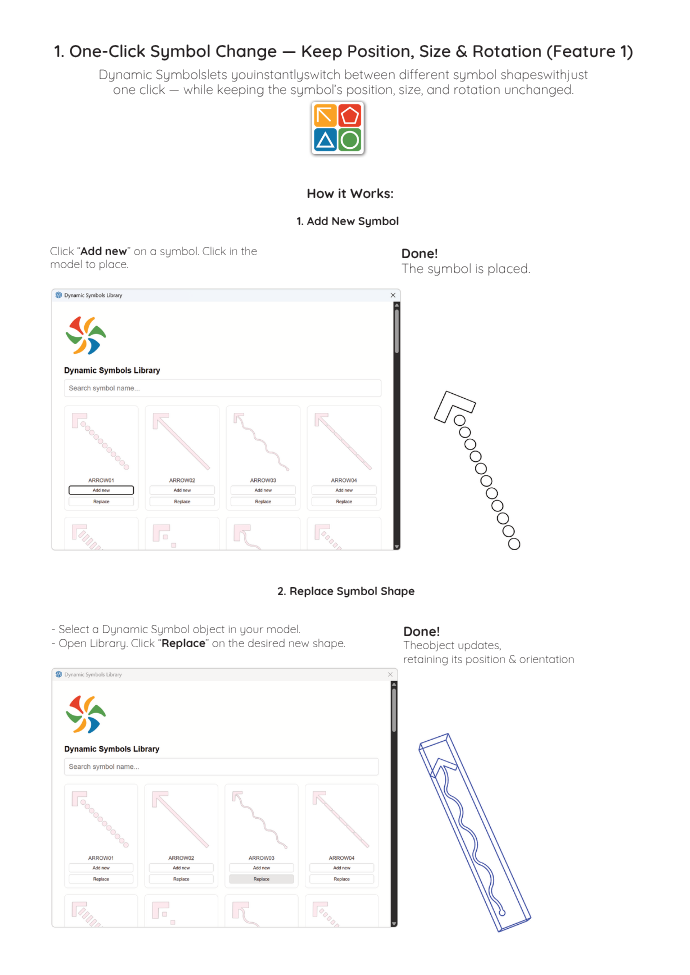
1. Symbol Library (Auto-Replace)
Instantly switch shapes while keeping the symbol’s original position, size, and rotation. - To place a symbol: Click any icon in the Symbols Library → Choose Yes to place it at your cursor. - To replace: Select an existing symbol in your model → Click a different icon in the Library. It updates instantly.
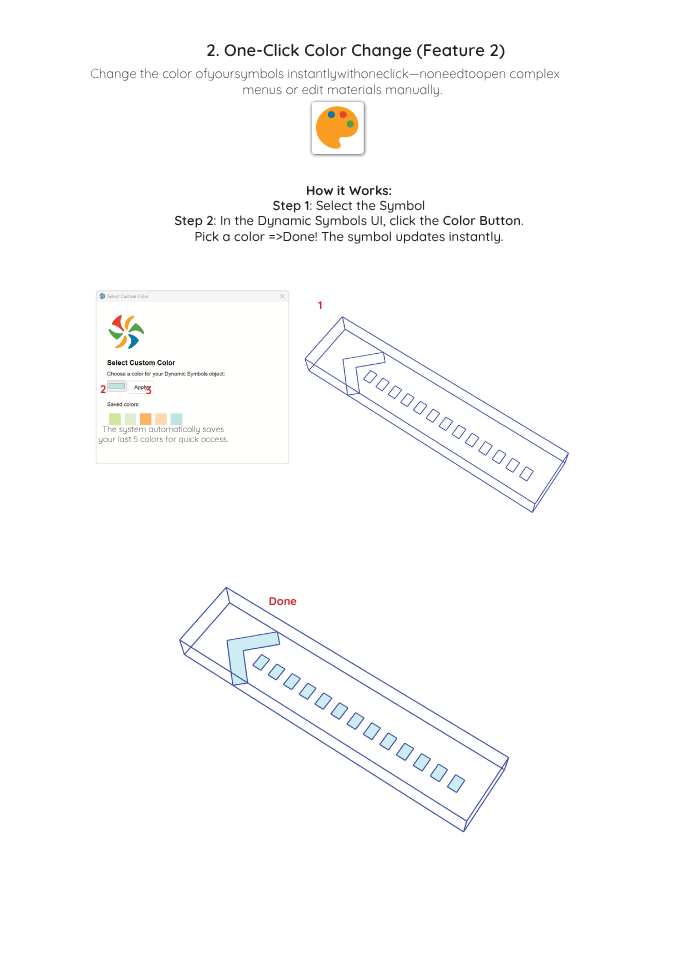
2. Custom Color Picker
Change colors with one click, without editing SketchUp materials. - Select your symbol(s). - Click the Custom Color icon on the toolbar. - Pick a color and click Apply. (Your recent colors are automatically saved).
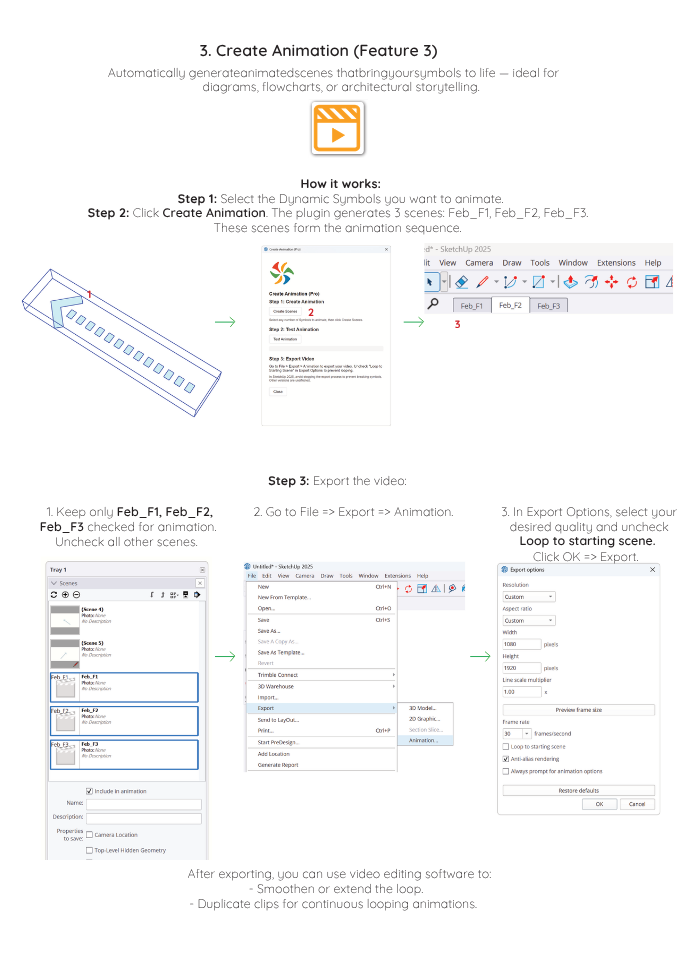
3. Create Animations
Generate animated sequences for diagrams and flowcharts.
- Select the symbols you want to animate.
- Click Create Animation on the toolbar → Click Create Scenes. (This generates 3 scenes: Feb_F1, Feb_F2, Feb_F3).
- Exporting: Go to File > Export > Animation. In Options, make sure to uncheck "Loop to starting scene", then Export.
Video Tutorials
Version 2.3.1 (20260324) :
UI/UX Overhaul: Completely redesigned dialogs (Library, Animation, Color, About) using a new centralized UI framework. Enjoy a cleaner, modern, and unified experience.
Live Color Updates: The Custom Color tool now instantly updates your “Saved Colors” palette when you apply a new color. No need to reopen the window!
Custom Animation Transitions: Added a new dropdown in the Animation UI to easily adjust scene transition times (Off, 1.0s, 2.0s, 3.0s) before testing your animation.
Version 2.2 (2025-10-24)
UI Enhancement: Improved Dynamic Symbols Library
Compatibility Fix: Resolved an incompatibility with SketchUp 2025/2026’s new graphics engine when using the Create Animation feature, improved compatibility with macOS. Please check out the upgraded interface of the official new version in the short video below: https://www.youtube.com/shorts/1hHj2kHNXec
Version 2.1 (2025-09-25) - Dynamic Symbols Library: add more symbols
Version 2.0 (2025-09-25) - UI Enhancement: Improved Dynamic Symbols Library
Version 1.0 (2025-07-22) Initial Release
Author:
All my plugins
Downloads: 235
Size: 2.53 MB
Version: 2.3.1
Categories: Drawing, Text/Labeling
Compatibility: v2020, v2021/22, v2023, v2024, v2025, v2026
Updated: 2026-06-15
Log in to Get It!