Browse, install and update extensions directly in SketchUp with Sketchucation Tools
Download Now
robo_Spacing_tool v1..1

- Overview
- Quick Start
- Documentation
- Release Notes
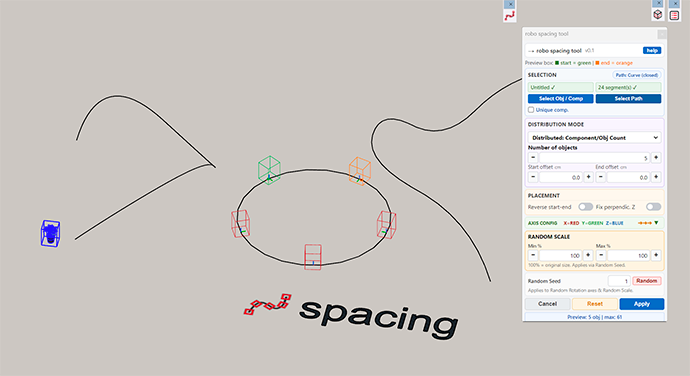
================================================================= FIELD 1 — "Add a quick-start guide for your plugin" (Overview / Start tab) Quick Start Select the component or group you want to distribute Select the path (line, curve, or edge chain) along which to place copies In the dialog, set the number of objects or the spacing value Adjust offsets, rotation, and scale if needed Click Apply — copies are placed instantly with a live preview Key features Distributes components or groups evenly along any line, curve, or edge chain Two distribution modes: Count (divide path into N equal slots) and Spacing (fixed distance between copies) Full Line toggle: select a single edge and let the plugin automatically detect the entire connected chain Live 3D preview directly in the SketchUp viewport before committing Per-axis offset and rotation (fixed or randomized) for each instance Random scale range with seed control for reproducible results Fix perpendicular Z: locks object orientation to the global up axis Works on open and closed paths, components and groups, all three axes Requirements SketchUp 2017 or higher
================================================================= FIELD 2 — "Documentation" tab robo Spacing Tool — Documentation Overview robo Spacing Tool distributes copies of a component or group evenly along any line or curve in SketchUp.
It supports open and closed paths, works with raw geometry and components, and provides a real-time 3D preview before any change is committed to the model.
Step-by-step usage 1. Select your objects Click Object / Comp to pick the component or group to duplicate. Click Path to pick the line, curve, or edge chain to distribute along. 2. Choose the Full Line option (optional) If your path is made of many connected edges, you don't need to select them all by hand. Click any single edge along the curve in the SketchUp viewport. Enable the Full Line toggle in the dialog (next to the object counter). The plugin automatically walks the entire connected chain in both directions and selects it for you. The toggle turns off automatically if you deselect the path in the viewport. 3. Set distribution parameters Option Description Count Divides the path equally among N objects Spacing Places copies at a fixed interval from the start point Start / End offset Shifts the active placement range inward from each end Reverse Flips the distribution direction 4. Fine-tune placement Offset X / Y / Z — constant translation applied to every instance Rotation X / Y / Z — fixed angular offset per instance Random rotation — unique random angle (0–360°) per instance; use Random Seed for repeatable results Fix perpendic. Z — forces the local Z-axis of every instance to align with the global Up direction (0,0,1) 5. Scale variation Set Min % and Max % to apply a random uniform scale to each instance. 100% = original size. The same seed value always produces the same layout. 6. Apply Click Apply to commit the result to the model. Click Cancel at any time to discard without changes.
Click Reset to restore all parameters to their default values.
Preview indicators Green marker — first object in the distribution
Orange marker — last object in the distribution
Requirements SketchUp 2017 or higher (Ruby 2.2+)
robo Spacing Tool for SketchUp
Description
robo Spacing Tool distributes components or groups along any line or curve, including closed loops. It features precise spacing control, random rotation, and real-time preview of the distribution.
Requirements
- SketchUp 2017 or higher
- A path (line, arc, curve, or closed loop) drawn in the model
- One or more components/groups to distribute
How to use
Step 1 — Prepare your model
- Draw the path (line, polyline, arc, or any curve) along which you want to distribute your objects
- Have at least one component or group ready in the model
Step 2 — Launch the tool
Go to Plugins > Robo Tools > roboSpacingtool
Step 3 — Select the path
- Click on the line or curve to use as the distribution path
- The tool supports open paths (lines, arcs, polylines) and closed loops (circles, polygons, closed curves)
Step 4 — Configure spacing
In the dialog that appears: - Spacing value — set the distance between each object - Random rotation — enable to apply a random rotation to each instance - A real-time preview will show the result directly in the viewport
Step 5 — Confirm
Click OK to apply the distribution. Objects are placed along the path at the defined spacing interval.
Key features
- Distributes components and groups along any line or curve
- Supports closed loops (full perimeter distribution)
- Precise spacing control with numeric input
- Random rotation option for natural/organic results
- Real-time preview before confirming
Tips
- Use a closed loop (e.g. a circle) to distribute objects evenly around a perimeter, such as fence posts or columns
- Combine with random rotation for natural elements like trees or rocks
- The path can be a hidden or construction line — it does not need to be visible geometry.
robo Spacing Tool for SketchUp
Description
robo Spacing Tool distributes components or groups along any line or curve, including closed loops. It features precise spacing control, random rotation, and real-time preview of the distribution.
Requirements
- SketchUp 2017 or higher
- A path (line, arc, curve, or closed loop) drawn in the model
- One or more components/groups to distribute
How to use
Step 1 — Prepare your model
- Draw the path (line, polyline, arc, or any curve) along which you want to distribute your objects
- Have at least one component or group ready in the model
Step 2 — Launch the tool
Go to Plugins > Robo Tools > roboSpacingtool
Step 3 — Select the path
- Click on the line or curve to use as the distribution path
- The tool supports open paths (lines, arcs, polylines) and closed loops (circles, polygons, closed curves)
Step 4 — Configure spacing
In the dialog that appears: - Spacing value — set the distance between each object - Random rotation — enable to apply a random rotation to each instance - A real-time preview will show the result directly in the viewport
Step 5 — Confirm
Click OK to apply the distribution. Objects are placed along the path at the defined spacing interval.
Key features
- Distributes components and groups along any line or curve
- Supports closed loops (full perimeter distribution)
- Precise spacing control with numeric input
- Random rotation option for natural/organic results
- Real-time preview before confirming
Tips
- Use a closed loop (e.g. a circle) to distribute objects evenly around a perimeter, such as fence posts or columns
- Combine with random rotation for natural elements like trees or rocks
- The path can be a hidden or construction line — it does not need to be visible geometry.
version 0.4.0 With this release the plugin is tested with RuboCop SketchUp – the official Trimble standard, which guarantees complete adherence to best practices for extensions.
version v0.5 — Introducing the Full Line Feature If you've ever used robo Spacing Tool to distribute components along a curved path in SketchUp, you know that selecting a long chain of connected edges by hand can be tedious — especially when the curve is made up of dozens of small segments. Version 0.5 solves this with a single new toggle: Full Line.
0.6 bug fix
0.6.5 bug fix
0.7 In this version, the new algorithm for random object scaling has been implemented.
0.8 The new “Absolute X Orientation” option makes sure that the red local X axis of each instance always points in a consistent global X direction along the entire path. Normally, when a path curves back on itself or forms a closed loop, the path tangent reverses direction and can cause the local XY frame of some instances to be mirrored compared to others. With Absolute X Orientation enabled, the plugin detects these 180‑degree flips and automatically rotates the local XY frame around Z when necessary, so all objects keep the same “facing” direction in X, while Z stays aligned to the path as before.
What's New in v0.9
Insertion Axis (X/Y/Z) Choose which local axis of your component follows the path direction. Default is X (classic behavior); switch to Y or Z to re-orient objects while keeping a right-handed frame. Since Offset, Rotation, and Random/Progressive always act on the object's own axes, this changes how those settings behave — and auto-updates the max object count / min spacing shown in the preview.
Progressive Rotation Turns a fixed rotation angle into a gradual twist along the path: the first object stays at 0°, the last object reaches your entered angle, and everything in between is evenly interpolated. Example: Rotation Z = 180° over 5 objects → 0°, 45°, 90°, 135°, 180°. Mutually exclusive with Random on the same axis.
Progressive Scale Same idea applied to size — instead of random per-object scaling, size grows or shrinks smoothly across the sequence, from Start % (first object) to End % (last object). Example: 50% → 150% over 5 objects → 50, 75, 100, 125, 150%.
Progressive vs. Random: Progressive interpolates by position in the sequence (predictable, smooth); Random assigns an independent value per object (reproducible via Random Seed).
ver 0.9.5 bug fix
ver 1.0 Real Object Preview (low-res) A new checkbox lets you swap the standard bounding-box preview for a low-resolution wireframe of the actual selected object or component, giving you a much more accurate view of your layout while adjusting the placement parameters. The toggle is always visible in the panel, even before you've selected anything.
1.0.2 Security bug New Real Object Preview feature Before installing the plugins, it is recommended to uninstall the old Bridge.
v 1.0.3 bug fix new futures
v 1.0.4 The function Max Objects Warning was introduced to ensure that the warning signal (blinking text and red background) related to the "Max objects" limit behaves identically in both Count and Distance modes, without introducing different behaviors or clamping logic. Fix bag
v1.1 New futures
Author: robo
robo
All my plugins
Downloads: 2305
Size: 0.05 MB
Version: 1..1
Categories: Construction, Drawing, Standard, Modification
Compatibility: v2021/22, v2023, v2024, v2025, v2026, v2027
Updated: 2026-09-03